Settings and account
Google Calendar
Busy time in your calendar blocks bookings, and your visits show up there.
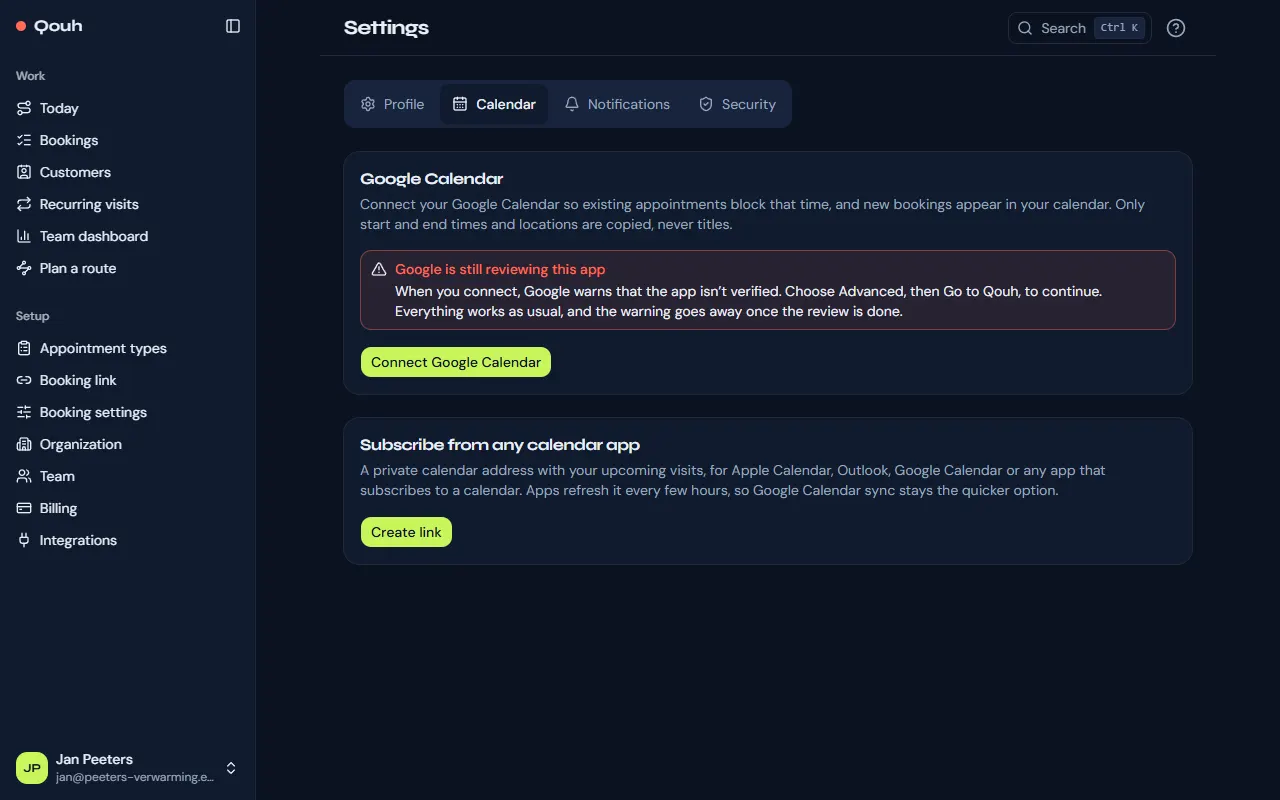
Connect your calendar
Under Settings → Calendar choose “Connect Google Calendar” and allow access with your Google account. Each person connects their own.
Busy time blocks bookings
Busy time in your Google Calendar can’t be booked by customers. The page lists what is busy in the next 7 days, and new events are picked up by themselves.
Your visits in your calendar
Booked visits are added to your Google Calendar and kept up to date when they move or are cancelled. “Remind me” chooses when Google reminds you before each visit. Without Google Calendar, every booking email you get has “Add to your calendar” links and the visit as a calendar file, which Apple Calendar and Outlook open. Under Settings → Calendar, “Subscribe from any calendar app” gives you a private address that Apple Calendar, Outlook or Google Calendar subscribe to; they refresh it every few hours.
Disconnect
“Disconnect” deletes the stored access and every busy time copied from your calendar.
Still stuck? Ask us.