Getting started
Get started
Create your account, set where and when you work, and share your booking link.
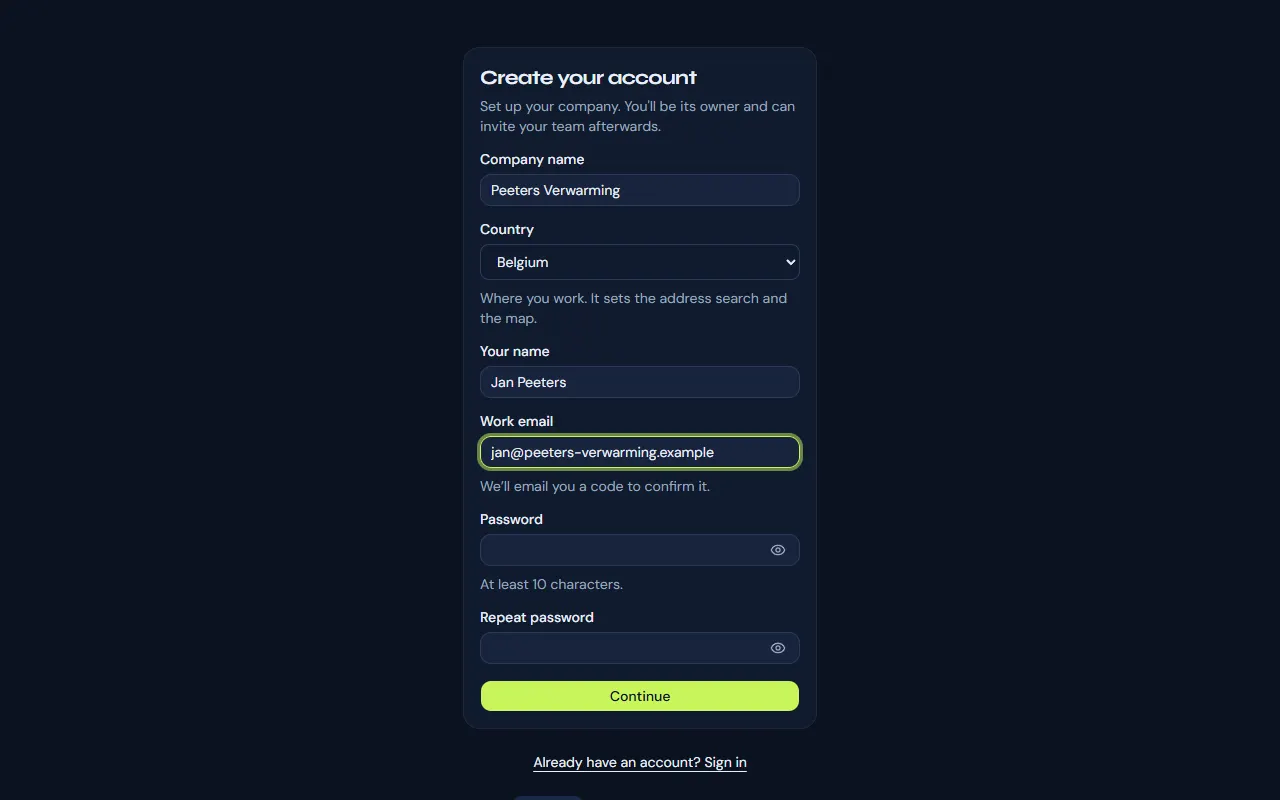
Create your account
Sign up with your company’s name, your name and your work email. We email you a 6-digit code to confirm the address; enter it and your account is ready. You are its owner.
Follow the three setup steps
Right after your account is created, three short steps ask for what customers need to book you: your departure address and working hours (Monday to Friday, 9 to 5, is filled in), your first appointment type (a name and a duration), and then your booking link, ready to copy or to share on WhatsApp or by email. “Do this later” skips a step; the checklist on Today keeps it until it is done. The first time you open Today, a short tour points out the menu. The two sections below explain the same settings in full.
Set your departure address and working hours
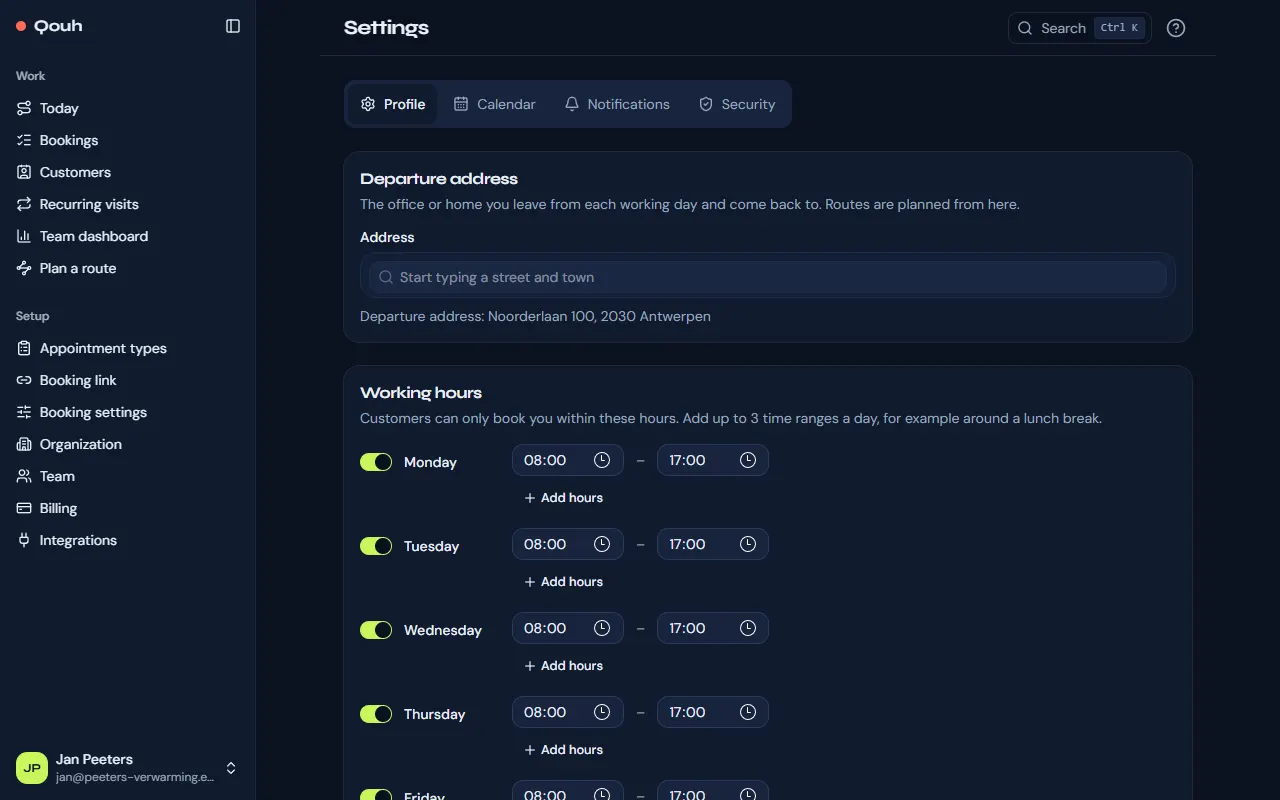
Open Settings from the menu under your name. Customers can only book you once both are filled in:
- Departure address: the office or home you leave from each working day and come back to. Your routes start and end there.
- Working hours: the days and times customers may book you. Use “Add hours” for a split day, for example around lunch.
- Press “Save settings”.
Create an appointment type
Under Setup → Appointment types, choose “New appointment type”. Say what customers book (for example “Boiler service”), how long it takes, how much time to keep free after it, and who goes. Each type gets its own booking link.
Share your booking link
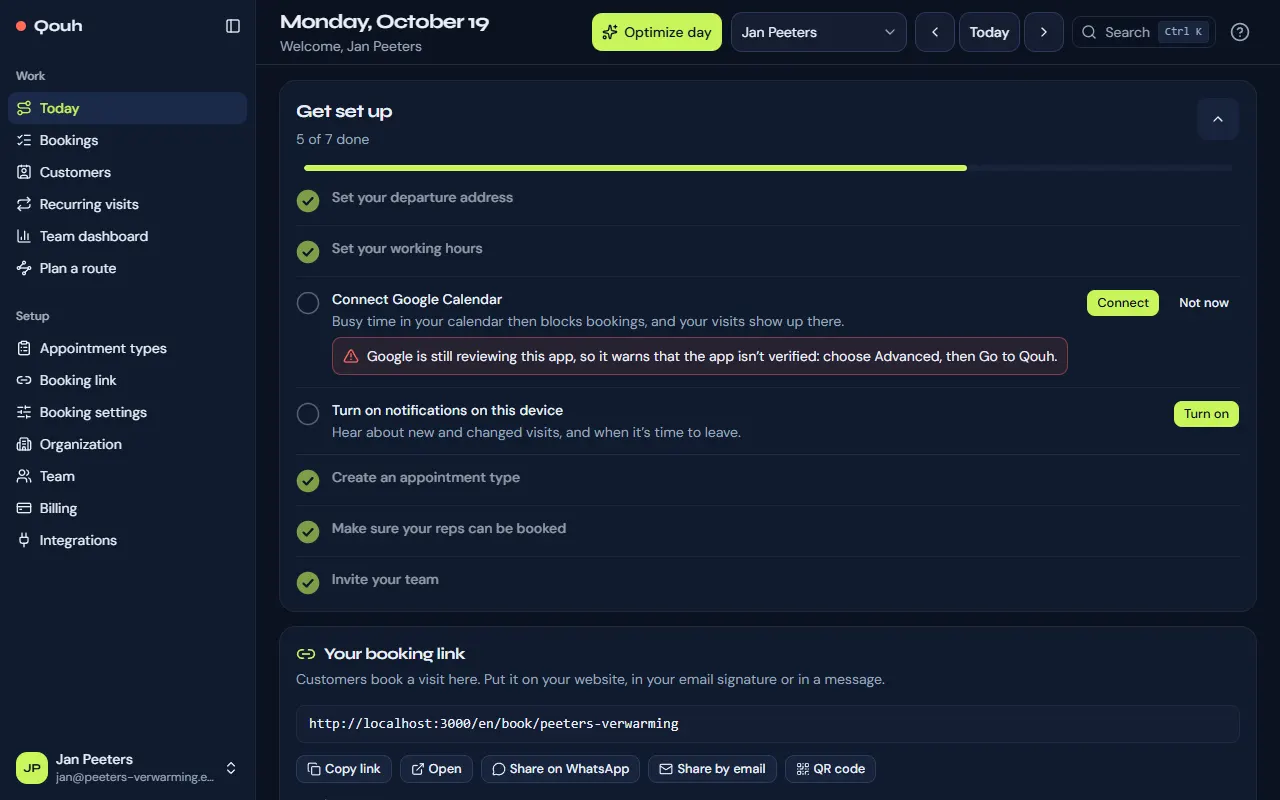
“Copy link” next to a type copies the link to its booking page: put it on your website, in your email signature or in a message to a customer. The link also sits on Today, in the “Your booking link” card, with buttons to copy it, open it, share it on WhatsApp or by email, or show it as a QR code to print. Setup → Booking link has it all in one place: each type’s link, a preview of your booking page and the code to show it inside your own website.
Invite your team
Under Setup → Team, invite the people who make the visits (reps) and those who help plan (admins). They set their own departure address and working hours, or you fill them in on their page. Your plan decides how many people you can add.
Follow the checklist on Today
Until everything is ready, Today shows “Get set up” with the steps still to do, such as connecting Google Calendar and turning on notifications on your phone. “Hide the steps” folds it away.
Still stuck? Ask us.