Getting started
Your booking page and appointment types
How customers book you, and how you decide what they can book and when.
Decide what customers can book
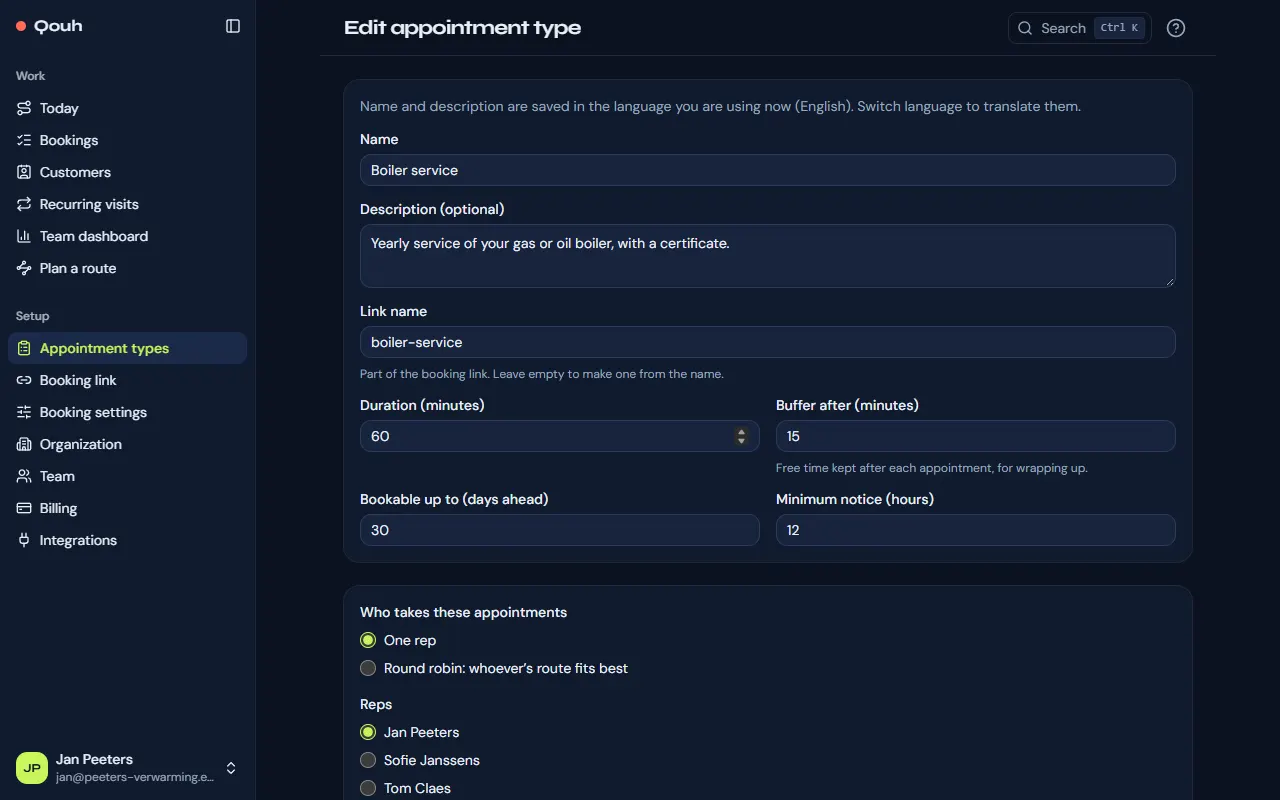
An appointment type is one thing customers can book. For each one you choose:
- The name and description customers see. They are saved in the language you are using, so switch language to translate them.
- How long it takes, and the free time to keep after it for wrapping up.
- Who takes it: one rep, or round robin, where whoever’s route fits best gets the visit (Pro).
- How many days ahead customers may book, and the minimum notice.
- Whether it is shown on the booking page.
What your customers see
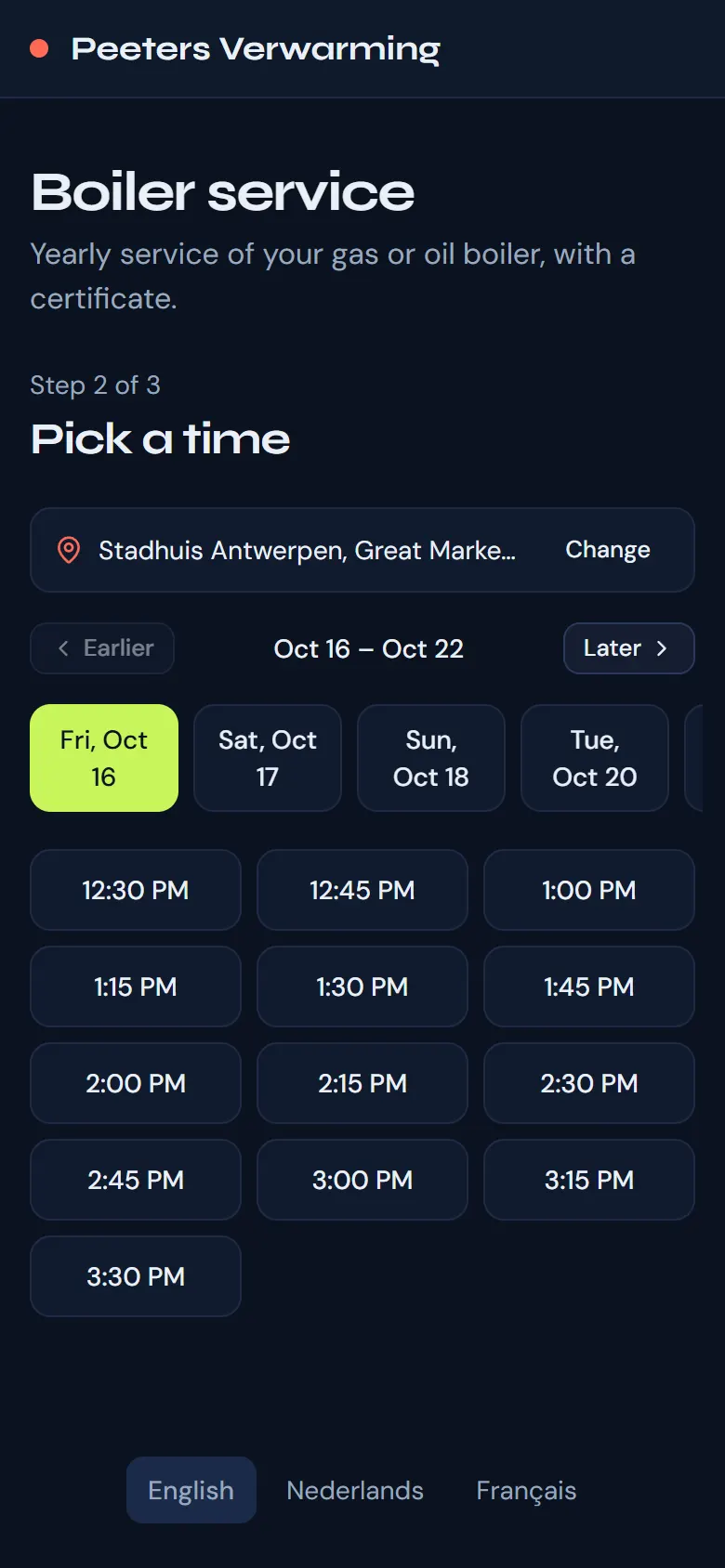
Your booking page asks three things: what they would like to book, their address, and a time. Then they leave their name, email and phone number, and get a confirmation by email.
Why these times?
The times on offer depend on the customer’s address. The planner offers the ones that fit your routes, with your working hours, other visits, busy time in your calendar and the drives between visits taken into account, and marks the best one “Best fit”. Under Setup → Booking settings you choose how closely times follow your routes: Speed, Balanced or Route.
Share it
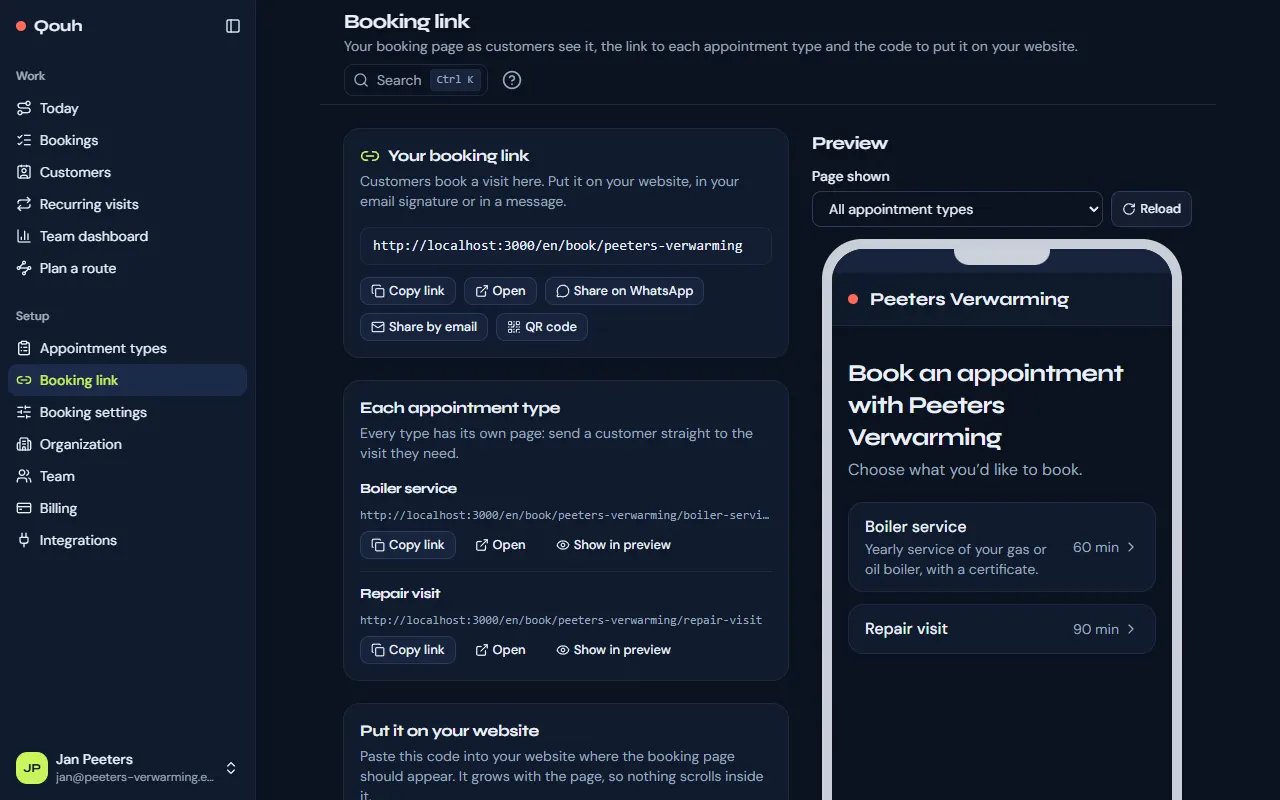
Every type has its own link, and the page listing all your types has one too. Setup → Booking link shows them all, with a preview of the booking page as customers see it on a phone and the code to show it inside your own website. “Copy link” on Appointment types copies a type’s link straight away.
Customers change their own bookings
The confirmation email has a “Reschedule or cancel” link. There customers pick another time or cancel, and you hear about it either way. That email, the reminder the evening before and the page they see right after booking have “Add to your calendar” links and the appointment as a calendar file.
Still stuck? Ask us.